
An IPTV stream over Wi-Fi that freezes every ten seconds is not a provider issue; it’s a local network layer problem. Before adjusting an application or subscription, the priority is to stabilize the wireless link between the TV and the router. Here, we detail the network settings, hardware choices, and concrete checks that make the difference between a stable stream and a choppy slideshow.
5 GHz Band, Channel Width, and QoS: The Technical Foundation of Wi-Fi IPTV
A TV connected via Wi-Fi almost always defaults to the 2.4 GHz band. For IPTV, this is a mistake. The 2.4 GHz band is congested by all household devices (smart home devices, speakers, microwaves) and offers only three truly non-overlapping channels in Europe.
We recommend forcing the TV connection to the 5 GHz band, which provides more free channels and a significantly higher actual throughput at short and medium distances. On most recent routers, simply separating the 2.4 and 5 GHz SSIDs allows the TV to connect to the correct network.
Channel width is also important. An 80 MHz channel in 5 GHz provides a theoretical throughput that is more than sufficient for an HD or 4K stream, provided the router does not share this channel with too many clients. Reducing to 40 MHz can paradoxically improve stability if your Wi-Fi environment is dense (apartment building, condominium).
On the router side, enable QoS (Quality of Service) with priority on video streaming. Some firmware allows prioritizing the TV’s MAC address directly. Without QoS, a simple download on a nearby PC can cause buffering during a live stream.
To go further on the physical and software connection part, successfully setting up a Wi-Fi IPTV connection on TV also requires checking the application’s compatibility with your TV model.
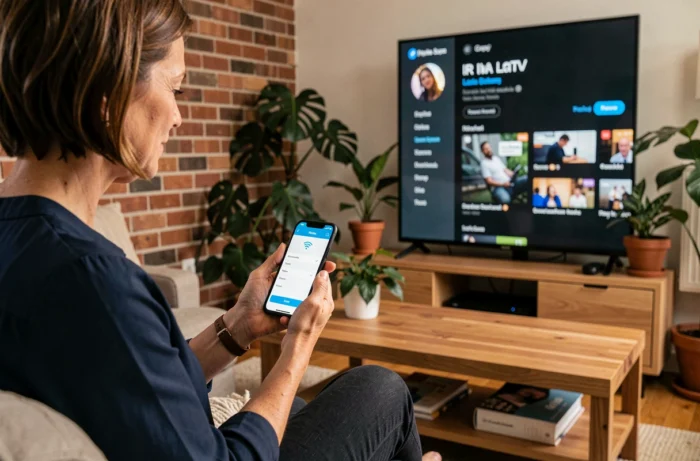
Actual Throughput vs. Advertised Throughput: Measuring What the TV Really Receives
The throughput displayed by your internet box (fiber, ADSL) is measured at the router level, not at the TV level. Between the two, the Wi-Fi signal passes through walls, furniture, and suffers from interference. A very high-speed fiber subscription guarantees nothing if the TV has a poor signal.
To measure the actual throughput at the TV level, use a speed test application directly on the Smart TV (available on Samsung, LG, Android TV stores). The relevant figure is the stable download speed, not the peak. An HD stream requires a constant speed without micro-cuts, and a 4K stream demands significantly more.
Concrete Case: Freebox and Smart TV over Wi-Fi
On a Freebox Pop or Freebox Player, the box’s built-in Wi-Fi may suffice if the TV is in the same room. As soon as a load-bearing wall or a floor intervenes, the signal drops. A standard Wi-Fi repeater adds latency, which exacerbates the problem for live IPTV.
The most reliable solution in this case remains a powerline adapter kit with an integrated Wi-Fi access point, which uses the electrical network to carry the signal close to the TV, then emits a clean local Wi-Fi. However, the Ethernet cable between the powerline adapter and the TV’s Ethernet port remains the most stable option.
IPTV Connection Protocol: Xtream Codes API vs. M3U List
When setting up the IPTV application on the TV, two connection methods coexist. The choice between the two has a direct impact on the stability of the Wi-Fi stream.
- The M3U list is a text file containing the URLs of each channel. The player opens an HTTP connection for each stream. In unstable Wi-Fi, each micro-cut forces the player to reopen the connection, resulting in a noticeable recovery delay.
- The Xtream Codes API protocol manages the session on the server side and allows for faster reconnection after an interruption. On an average Wi-Fi network, this method significantly reduces zapping times and black screens between channels.
- Some applications (IPTV Smarters Pro, TiviMate) support both protocols. We observe that switching from an M3U list to Xtream Codes API on the same Wi-Fi network improves perceived fluidity without any hardware changes.
Legal Framework for IPTV in France: What Technical Guides Omit
A guide on setting up IPTV over Wi-Fi would be incomplete without a note on legality. France has tightened its crackdown on illegal IPTV since the law of March 27, 2024, with a rapid blocking mechanism for unauthorized streams included in the Sports Code.
ARCOM has blocked more than 1,922 illegal services in eight months during 2024. A near real-time blocking system (under thirty minutes) for live sports is operational. Sources from 2026 report the first fines against individual subscribers, ranging from 300 to 400 euros.
An IPTV subscription at an abnormally low price is a signal of illegality. Legal services (Molotov, operator subscriptions, official platforms) include broadcasting rights in their pricing. Using an illegal service exposes users not only to financial penalties but also to abrupt interruptions during viewing, as real-time blocking of pirate streams is expected to expand by early 2027.
The perfect Wi-Fi setup is useless if the stream is cut off by ARCOM after twenty minutes. Verifying the legitimacy of the IPTV service before configuring anything on the home network remains the first truly useful step.